2.1. Tips/Issues for installation
2.1.1. Linux installation
For Linux installation, only Ubuntu operating system are currently being tested. In particular, one needs to make sure that the QT environment can be used. Running the following command should be sufficient to start with:
sudo apt install libxkbcommon-x11-0 libxcb-icccm4 libxcb-image0 libxcb-keysyms1 libxcb-randr0 libxcb-render-util0 libxcb-xinerama0 libxcb-xfixes0 x11-utils
It is also necessary to give some reading and writing permission access to some specific folders. In particular, PyMoDAQ creates two folders that are used to store configurations files, one assigned to the system in /etc/.pymodaq/ and one assigned to the user ~/.pymodaq/. We need to give reading/writing permission acess to the system folder. One should then run before/after installing pymodaq:
sudo mkdir /etc/.pymodaq/sudo chmod uo+rw /etc/.pymodaq
As a side note, these files are shared between different pymodaq’s versions (going from 3 to 4 for example). It is suggested to delete/remake the folder (or empty its content) when setting up a new environment with a different pymodaq version.
2.1.2. Qt5 backend
PyMoDAQ source code uses a python package called qtpy that add an abstraction layer between PyMoDAQ’s code and the actual Qt5 python implementation (either PyQt5 or PySide2, and soon PyQt6 and PySide6). Qtpy will look on what is installed on your environment and load PyQt5 by default (see the PyMoDAQ configuration for default values to change this default behaviour). This means you have to install one of these backends on your environment using either:
pip install pyqt5pip install pyside2(still some issues with some parts of pymodaq’s code. If you want to help fix them, please, don’t be shy!)pip install pyqt6(not tested yet)pip install pyside6(not tested yet)
2.1.3. Loading modules
2.1.3.1. Load installed scripts
During its installation, a few scripts have been installed within you environment directory, this means you can start PyMoDAQ’s main functionalities directly writing in your console either:
dashboarddaq_scandaq_loggerdaq_viewerdaq_moveh5browserplugin_manager
2.1.3.2. Execute a given python file
If you knwow where, within PyMoDAQ directories, is the python file you want to run you can enter for instance:
python -m pymodaq.dashboardpython -m pymodaq.extensions.daq_scanpython -m pymodaq.extensions.daq_loggerpython -m pymodaq.control_modules.daq_viewerpython -m pymodaq.control_modules.daq_movepython -m pymodaq.extensions.h5browserpython -m pymodaq_plugin_manager.manager
for PyMoDAQ’s main modules. The -m option tells python to look within its site-packages folder (where you’ve just
installed pymodaq) In fact if one of PyMoDAQ’s file (xxx.py) as an entry point (a if __name__='__main__:'
statement at the end of the file), you can run it by calling python over it…
2.1.4. Creating shortcuts on Windows
Python packages can easily be started from the command line (see Loading modules). However, Windows users will probably prefer using shortcuts on the desktop. Here is how to do it (Thanks to Christophe Halgand for the procedure):
First create a shortcut (see Fig. 2.1) on your desktop (pointing to any file or program, it doesn’t matter)
Right click on it and open its properties (see Fig. 2.2)
On the Start in field (“Démarrer dans” in french and in the figure), enter the path to the condabin folder of your miniconda or anaconda distribution, for instance:
C:\Miniconda3\condabinOn the Target field, (“Cible” in french and in the figure), enter this string:
C:\Windows\System32\cmd.exe /k conda activate my_env & python -m pymodaq.dashboard. This means that your shortcut will open the windows’s command line, then execute your environment activation (conda activate my_env bit), then finally execute and start Python, opening the correct pymodaq file (here dashboard.py, starting the Dashboard module, python -m pymodaq.dashboard bit)You’re done!
Do it again for each PyMoDAQ’s module you want (to get the correct python file and it’s path, see Loading modules).
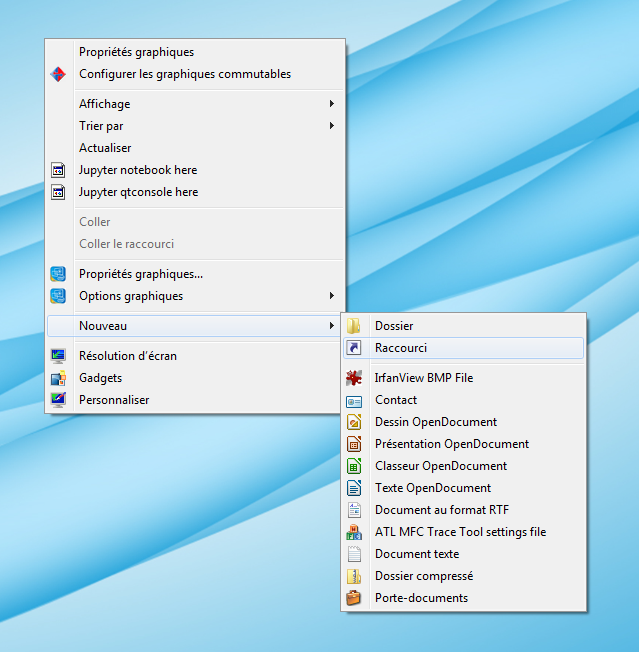
Fig. 2.1 Create a shortcut on your desktop
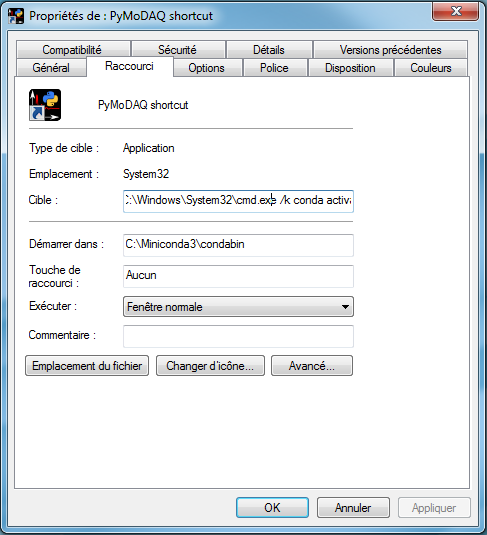
Fig. 2.2 Shortcut properties