6.6. Shared UI
6.6.1. Introduction
All user interfaces within PyMoDAQ are sharing some features that would be complex to maintain if declared everywhere. This is why most of the UI derive from the CustomApp and CustomExt base class. However the latter provides only the framework to quickly build interfaces that may be very different. It doesn’t provide a unified way to add direct actions and access to comonly used features such as the PyMoDAQ preferences, the log file or even a direct link to the documentation. This is the role of the SharedUi object that will wraps CustomApps with common features (mostly actions and menus) we will describe below.
6.6.2. Instantiating a SharedUI
The code below shows how to create and instantiate a SharedUI. One should first create a MainWindow either directly or using the make_window method. The SharedUI object take this window as an argument and will build on it the menus and actions, see Fig. 6.21
from pymodaq_gui.utils.widgets.window import make_window
from pymodaq_gui.utils.shared_ui import SharedUI
from pymodaq_gui.qt_utils import mkQApp

app = mkQApp('CommonWindow')

win, area = make_window(area=False, title='SharedUI')
window = SharedUI(win)

window.show()

sys.exit(app.exec())

Fig. 6.21 SharedUI interface.
6.6.3. Menu Bar Description
Figure Fig. 6.21 displays the menu of the SharedUI window with access to all the tools useful within PyMoDAQ and described below:
The File menu will allow you to Restart or Quit the DashBoard
The View menu is allowing to display or not the various toolbars
The Tools menu will allow you to:
Look at the current log file in the default editor. The older logs can be found in the .pymodaq folder, see Configuration.
Open and modify the Preferences related to all pymodaq modules and plugins (see Fig. Fig. 6.22)
Run the leco Coordinator (see LECO communication) if the pymodaq SharedUI is used:
pymodaq.utils.shared_ui import SharedUIis used (adding some more functionalities compared to the pymodaq_gui one).
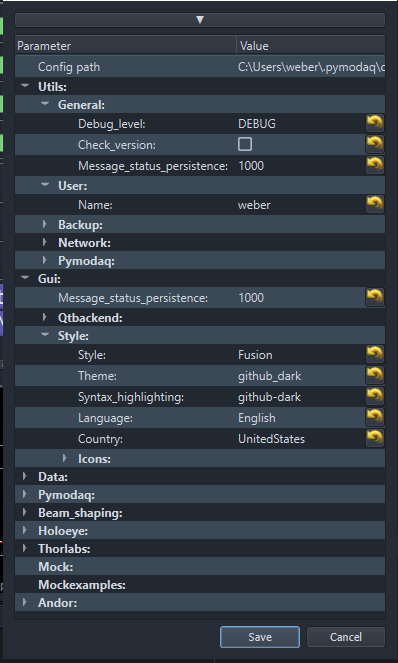
Fig. 6.22 Preferences popup window.
Finally, the Help menu will allow you to:
Browse the documentation
Check for PyMoDAQ updates
Print the current versions of PyMoDAQ.