2.6. Configuration
The configuration of PyMoDAQ is made of two kinds of files stored on disk:
the preferences: default values used throughout PyMoDAQ and its plugins (author name, saving path, default scan type, theme, Qt backend…). They live in toml files and are edited from the Preferences window, see Modifying the preferences.
the entries of the managers: an entry is a saved set of what a given manager manages (an experiment, a state, a set of ROIs, an overshoot…). You create, modify and apply them through each manager’s user interface, see Entries from Managers.
The preferences were formerly called the configuration, and some places in the code and the documentation still use that word for them.
2.6.1. Where are the files?
All these files are located within two folders, each called .pymodaq. One is system wide and located in one of these locations:
Windows: ProgramData folder
Mac: Library/Application Support folder
Linux: /etc
while the other is restricted to the current user and located in the user’s home folder.
Each kind of file has its own subfolder. Files shared between all users are in the system-wide folder, see Fig. 2.98:
config: the default preferences toml files, see Preferences files
experiments: the entries of the Experiment manager, defining the type and number of control modules for a given experiment
states: the entries of the StateManager
overshooter_configs: the entries of the Overshoot manager (overshoot_configs holds the files of older versions)
roi_configs: the ROIs saved from the data viewers
scans: the entries of the Scan Manager, the scans defined for the DAQ_Scan
sequences: the sequences of the Sequencer
layout_configs: the user interface docks arrangement

Fig. 2.98 System-wide .pymodaq folder
The user folder holds what is specific to the current user, see Fig. 2.99:
config: the preferences modified by the user, see Preferences files
rois: the entries of the ROI manager
scans: the scan entries saved from the DAQ_Scan extension
log: the log files
environments: backups of the Python environment (list of installed packages) taken at startup, see the
[backup]section of the utils preferencesmonaco_editor: files of the code editor
history.toml: the history of the launcher
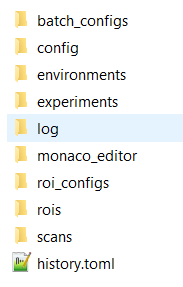
Fig. 2.99 User .pymodaq folder (in the home folder)
2.6.1.1. Entries from Managers
The managers (see DashBoard Managers) handle one aspect of PyMoDAQ each: the Experiment manager defines the Actuators and Detectors of the Dashboard, the StateManager stores and restores the settings and positions of the control modules, and so on. Each saved set of what a manager manages is called an entry. A manager can store several entries, and lists them so that you can pick the one to apply.
How an entry is written to disk depends on the manager:
as an xml file when what is saved is a
Parametertree, for instance the entries of the Experiment manager or of the Overshoot manager,as a plain binary file (serialized PyMoDAQ objects) otherwise, for instance the .state entries of the StateManager.
In both cases, you should not edit these files directly, but use the corresponding manager user interface to create, modify and delete entries.
2.6.2. Preferences files
Each PyMoDAQ package comes with its own preferences file, stored in the config subfolder of the .pymodaq folders:
Package |
File |
Content (non exhaustive) |
|---|---|---|
pymodaq_utils |
utils.toml |
user name (used as author in the saved files), logging level, LECO coordinator, backups |
pymodaq_data |
data.toml |
data saving: hdf5 backend, saving path, compression, SWMR, data type |
pymodaq_gui |
gui.toml |
Qt backend, style and theme, language, plotting defaults |
pymodaq |
pymodaq.toml |
control modules, actuators, viewers, scans, optimizers, ramping… |
pymodaq_plugins_xxx |
config_xxx.toml |
whatever the plugin needs, see Plugins preferences |
Each file is built from a config_template.toml shipped in the resources folder of the corresponding package. For instance, an excerpt of the data.toml one:
[data_saving]
backend = ['h5py', 'tables', 'h5pyd']  # first element is the default

    [data_saving.swmr]
    enabled = true
    flush_interval = 1

    [data_saving.h5file]
    save_path = "C:\\Data"  # base path where data are automatically saved
    compression_level = 5  # for hdf5 files between 0 (min) and 9 (max)
and of the pymodaq.toml one:
[scan]
show_popups = true
default = "Scan2D"
Naverage = 1  # minimum is 1
steps_limit = 1000  # the limit of the number of steps you can set in a given scan

[ramping]
duration_units = ["s", "min"]
ramp_setting = ["duration", "velocity"]
2.6.2.1. System-wide and user values
The file in the system-wide folder holds the default values. It is created from the template the first time the package is used, and completed when a new version of the template brings new entries.
The file with the same name in the user .pymodaq folder only stores the entries the user changed. When loading, the system-wide values are read first, then updated with the user ones. In this way, if the computer is shared among multiple users, each can specify their own metadata, UI feel and shape, default experiment…
Important
For list entries, the value used by PyMoDAQ is the first one. You can change it either by placing the desired value first in the list or directly from the Preferences window by selecting it in the combo box.
2.6.3. The GlobalConfig object
In the code, all the preferences are accessed through a single object: GlobalConfig, from
pymodaq_utils.config. Each package (and each installed plugin) registers its own preferences into it,
under a name: 'utils', 'data', 'gui', 'pymodaq', or the plugin name ('mock' for
pymodaq_plugins_mock…). The Config class of the utils module of every installed plugin package
(instruments, extensions, models…) is registered when pymodaq is imported, by
pymodaq.utils.daq_utils.register_plugin_configs. This name is then the first element of the path to a value:
from pymodaq_utils.config import GlobalConfig

config = GlobalConfig()

config('utils', 'user', 'name')  # call syntax
config['data', 'data_saving', 'h5file', 'save_path']  # or item syntax
config.get(('pymodaq', 'scan', 'default'), 'Scan1D')  # with a default value if the entry is missing

print(config)  # list all the registered preferences
GlobalConfig is a singleton: calling GlobalConfig() anywhere, in any module, always returns the
same instance. So there is a single set of values in memory for the whole application: a value modified from one
place is immediately seen by every other piece of code holding a GlobalConfig, without reloading any file:
config_a = GlobalConfig()
config_b = GlobalConfig()  # elsewhere in the code
assert config_a is config_b

config_a['utils', 'user', 'name'] = 'Jane'
config_b('utils', 'user', 'name')  # -> 'Jane'
Accessing the preferences is thread safe (a read/write lock protects each package’s preferences).
Note
Before GlobalConfig, each package created its own Config object, e.g.
from pymodaq.utils.config import Config; config = Config(). Calling these constructors directly is now
deprecated: use GlobalConfig and prefix the path with the package name (config['an_entry'] becomes
config['pymodaq', 'an_entry']).
2.6.3.1. Modifying the preferences
2.6.3.1.1. From the user interface
In the Dashboard (and in any application built on the SharedUI), open the Preferences window from the
Tools menu or from the toolbar (handyman icon), see Fig. 2.100. It shows all the
registered preferences as a tree, one group per package or plugin. List entries are shown as combo boxes.
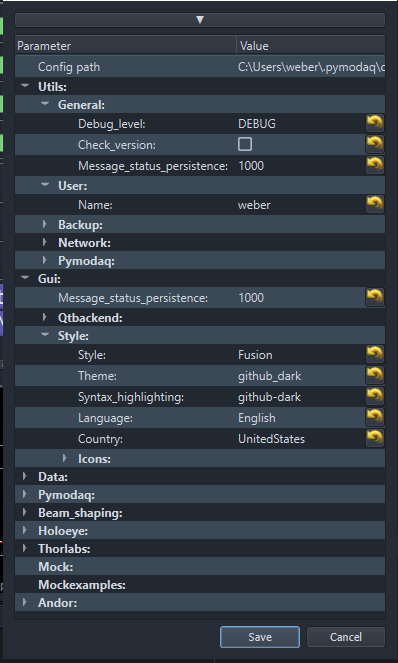
Fig. 2.100 The Preferences window
Changes are applied only when clicking on Save: the values are then updated in GlobalConfig (hence
everywhere in the application) and written to the user files. Cancel discards them. The Dashboard and the
extensions are notified through their config_changed signal.
Preferences that are read only when a module or the application starts (for instance the Qt backend or the theme) only take effect at the next start (File/Restart in the Dashboard).
2.6.3.1.2. Programmatically
Assign a new value using the item syntax with the full path:
config = GlobalConfig()
config['data', 'data_saving', 'h5file', 'save_path'] = '/home/jane/data'
config.save()
The new value is used at once by the whole application, but it only lives in memory until save() is called.
save() writes the modified entries of every package to their user file (the system-wide file is never
modified). Saving also happens automatically when Python exits, but calling save() explicitly makes sure your
changes are kept.
2.6.4. Plugins preferences
Instrument plugins benefit from the same features. The plugin package should contain a resources folder holding a config_template.toml file, see Fig. 2.101. There is no VERSION file anymore: the version of the package is now given by its git tags.
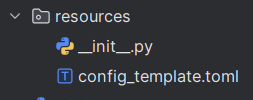
Fig. 2.101 Files in the resources folder of a basic plugin
This config_template.toml file holds any mandatory preference values needed from within your plugin package scripts. The first time the plugin package is used, this file will be copied into the system-wide folder, and modified values will be stored in the user folder, as for PyMoDAQ’s own preferences.
Another file is mandatory, the utils.py at the root of the plugin package. In there, will be defined the particular Config class of the plugin:
class Config(BaseConfig):
    """Main class to deal with configuration values for this plugin"""
    config_template_path = Path(__file__).parent.joinpath('resources/config_template.toml')
    config_name = f"config_{__package__.split('pymodaq_plugins_')[1]}"
The file name comes from config_name. For instance, in a plugin package called pymodaq_plugins_myplugin, the preferences file will be called config_myplugin.toml.
When PyMoDAQ discovers the installed plugins, it registers this class into GlobalConfig, under the plugin
name without the pymodaq_plugins_ prefix: 'myplugin'. So you don’t need to decorate it yourself.
If the config_template.toml of pymodaq_plugins_myplugin contains:
[camera]
exposure_ms = 10.
then, within any script of the plugin (or anywhere else), the value is accessed with:
from pymodaq_utils.config import GlobalConfig

config = GlobalConfig()
config('myplugin', 'camera', 'exposure_ms')  # -> 10.0