2.2. Launcher
This module is a home page for PyMoDAQ, with it it is possible to conveniently start different empty PyMoDAQ module (the dashboard, a DAQ Viewer, a DAQ Move, the H5Browser or any available extension). Using an history system a dashboard with a specific experiment and state can also be started, while providing the option to change the experiment and state to restore on the fly.
Note
This module can be started from a terminal, using the command pymodaq in an activated environment where
PyMoDAQ is installed.
2.2.1. Introduction
This module has one main window, the launcher (Fig. 2.4) where two spaces : a shortcuts part and a restoration part, separate by a vertical spacer. The first, contains PyMoDAQ’s extensions launch shortcuts. In this second space, the header allows you to navigate in the history entries, change configuration and load a dashboard with an experiment and a state. Finally, under the header, there is a material tree, who expose actuators and detectors used for selected experiment.
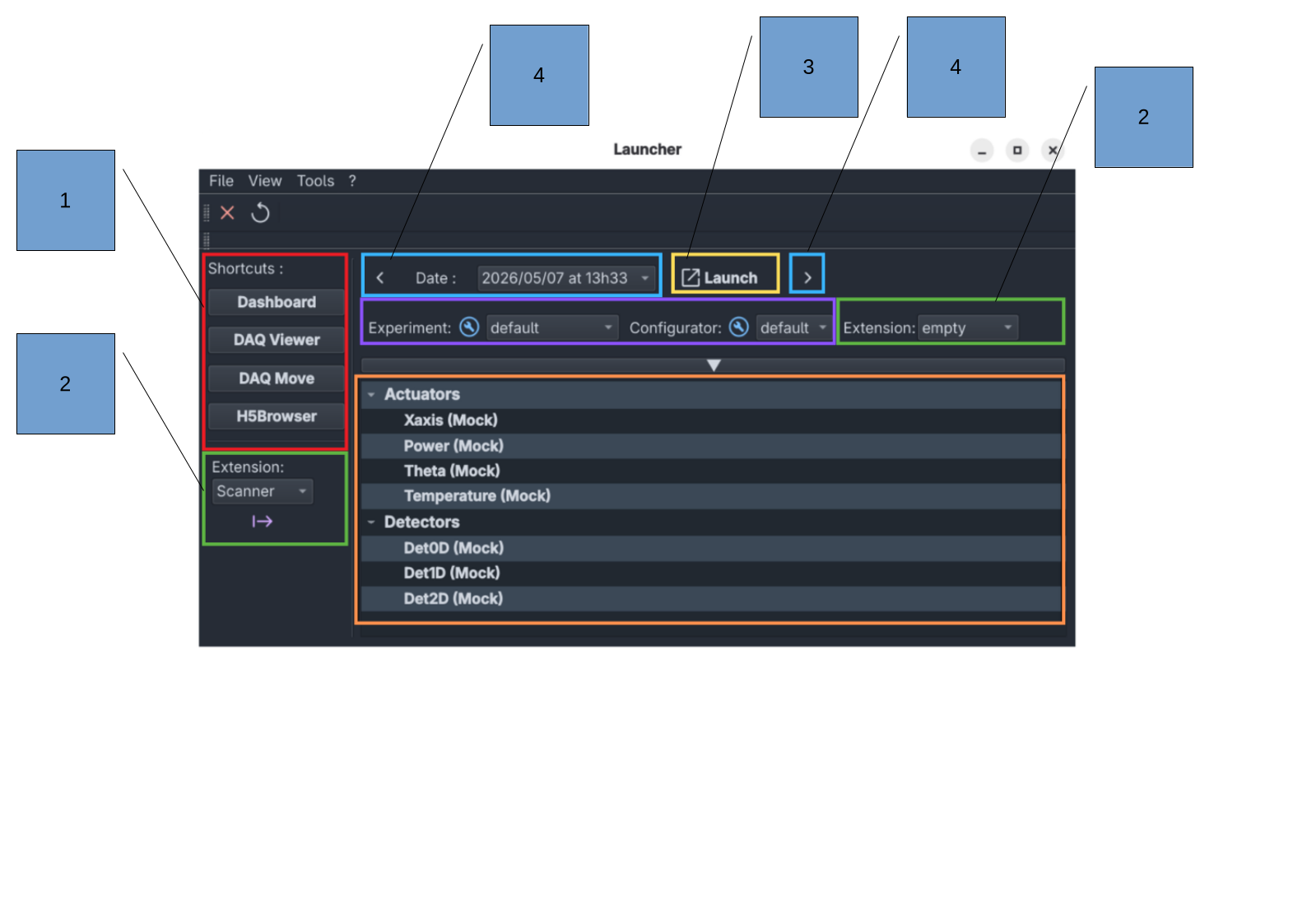
Fig. 2.4 Launcher user interface containing shortcuts and experiment information.
2.2.2. Launcher features
Launcher has graphical shortcuts to launch empty interface, such as command line. (see 1 part of illustration)
Note
If you want to launch a default dashboard with default experiment and state, you can refer to the `Restore an experiment`_ section.
For all shortcuts, please refer you to appropriate section for more details on how it works.
To load an extension, select one in the combo box widget and click to arrow button. (see 2 part of illustration) Multiple extensions can be launched simultaneously. Extensions run in separate process from each other, as well as from the launcher and dashboard. So, if an extension encounter an issue, other modules are not affected.
To restore an experiment click on 
Launch button. The launcher will load a dashboard with selected experiment and state.
You can modify experiment or state before restore an experiment, for exemple if the last time PyMoDAQ used an experiment and a state, the launcher suggests that but you can just modify state.
If the experiment that you want load is not suggest directly by the launcher or in history, you can select any experiment and state, to use passive launcher experience.
Note
If you want to load a dashboard with default experiment and state, the right method is to choose default experiment and click on Launch.
This method is faster than open an empty dashboard and load manually default experiment.
By default, the launcher display the last configuration used to make the dashboard restoration as quick as possible. But, you can navigate in the configurations history, who store date, hour, experiment and state used.
You can navigate by navigation arrows or by date through the history. When the right configuration is set, you can change the state before to restore the dashboard.
By default in the launcher, the history size is fixed at 20 items and does not keep duplicates entries. Meaning that, if a configuration (experiment + state) is chosen and this configurations was already recorded in the history, this previous entry is overwritten by the current one.
This behaviour can be changed in the Preferences under Pymodaq > Launcher. The maximum history size (number of stored entries)
and if the launcher keep duplicates can be changed.
Warning
If the new maximum history size is smaller than the previous, old entries will be deleted!
Warning
If keep_duplicates settings is set to on and you switch it to off, old duplicates will be deleted!

Fig. 2.5 Launcher settings.