2.12. Other Modules
2.12.1. H5Saver
This module is a help to save data in a hierarchical hdf5 binary file through one of the supported backends
(pytables or h5py, configurable in the settings). Using the H5Saver object will make sure you can explore
your data with the H5Browser. The object can be used to: punctually save one set of data such as with the
DAQ_Viewer (see Snapshots), save multiple acquisition such as with the DAQ_Scan
(see Saving: Dataset and scans) or save on the fly with enlargeable arrays such as the Saver settings
mode of the DAQ_Viewer.
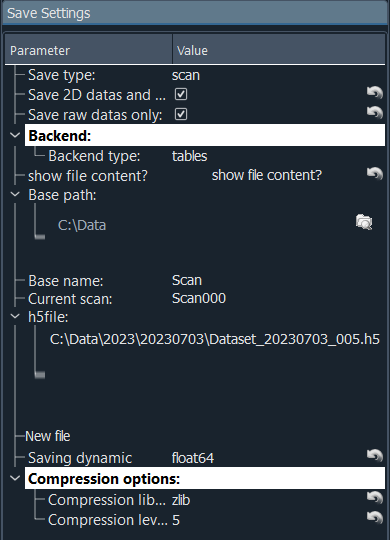
Fig. 2.63 User interface of the H5Saver module
On the possible saving options, you’ll find (see Fig. 2.63):
Save type:
Save 2D and above: True by default, allow to save data with high dimensionality (taking a lot of memory space)
Save raw data only: True by default, will only save data not processed from the Viewer’s ROIs.
Backend: select the hdf5 backend to use (pytables or h5py). Switching backend also controls the visibility of the SWMR options (see below).
SWMR options (visible only when the h5py backend is selected):
Enable SWMR: enable Single Writer Multiple Reader mode. When enabled, readers can access the file while a scan is writing to it. The file is created with
libver='latest'and aswmr_compatibleattribute is set on the root group.Flush interval: how often to flush data for SWMR readers (in scan steps). 0 means flush only at the end.
When opening an existing file, a compatibility check is performed. If the file’s SWMR state does not match the current settings, a dialog is shown letting you adapt the settings or create a new file.
Show file content is a button that will open the
H5Browserinterface to explore data in the current h5 fileBase path: where will be saved all the data
Base name: indicates the base name from which the actual filename will derive
Current scan indicate the increment of the scans (valid for DAQ_Scan extension only)
h5file: readonly, complete path of the saved file
Do Save: Initialize the file and logging can start. A new file is created if clicked again, valid for the continuous saving mode of the
DAQ_ViewerNew file is a button that will create a new file for subsequent saving
Browse file… is a button that opens a file dialog to select an existing h5 file to append to
Saving dynamic is a list of number types that could be used for saving. Default is float 64 bits, but if your data are 16 bits integers, there is no use to use float, so select int16 or uint16
Compression options: data can be compressed before saving, using one of the proposed library and the given value of compression [0-9].
2.12.2. Navigator
See Navigator
2.12.2.1. Scan Selector
Scans can be specified manually using the Scanner Settings (explained above). However, in the case of a scan using 2 DAQ_Move modules, it could be more convenient to select an area using a rectangular ROI within a 2D viewer. Various such viewers can be used. For instance, the viewer of a camera (if one think of a camera in a microscope to select an area to cartography) or even the DAQ_Scan 2D viewer. Sometimes it could also be interesting to do linear sections within a 2D phase space (let’s say defined by the ranges of 2 DAQ_Moves). This defines complex tabular type scan within a 2D area, difficult to set manually. Fig. 5.6 displays such sections within the DAQ_Scan viewer where a previous 2D scan has been recorded. The user just have to choose the correct selection mode in the scanner settings, see Fig. 2.64, and select on which 2D viewer to display the ROI (From Module option).
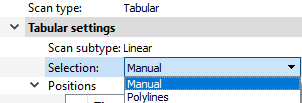
Fig. 2.64 In the scanner settings, the selection entry gives the choice between Manual selection of from PolyLines (in the case of 1D scans) or From ROI in the case of 2D scans.
2.12.3. ChronoTimer
Fig. User Interface of the Chrono/Timer UI shows a user interface to be used for timing things. Not really part of PyMoDAQ but well could be useful (Used it to time a roller event in my lab ;-) )
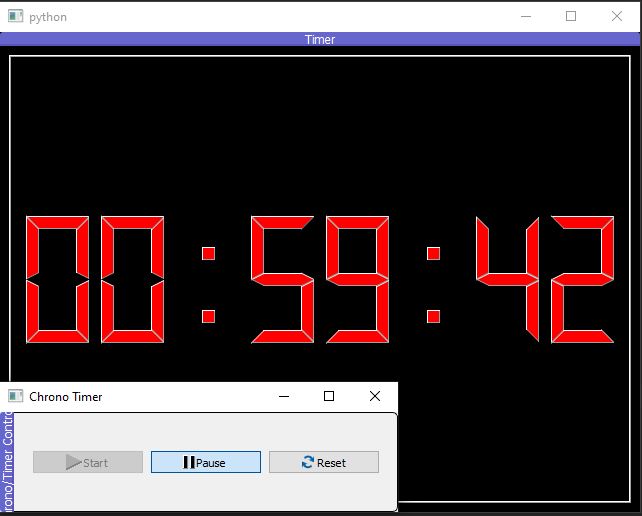
Fig. 2.65 User Interface of the Chrono/Timer UI