5.4. The H5 file manager
Many applications and extensions of PyMoDAQ save data in a h5 file: the DAQ Scan, the
DAQ_Logger, the Sequencer, the Ramping extension… They all
handle this file the same way, through the H5Manager: an object attached to every CustomApp (hence every
extension) that takes care of opening, creating and closing the h5 file, and exposes the corresponding actions in a
toolbar, a menu and the status bar.
This page describes its behaviour and its actions, from a user point of view first, then for developers wanting to use it in their own application.
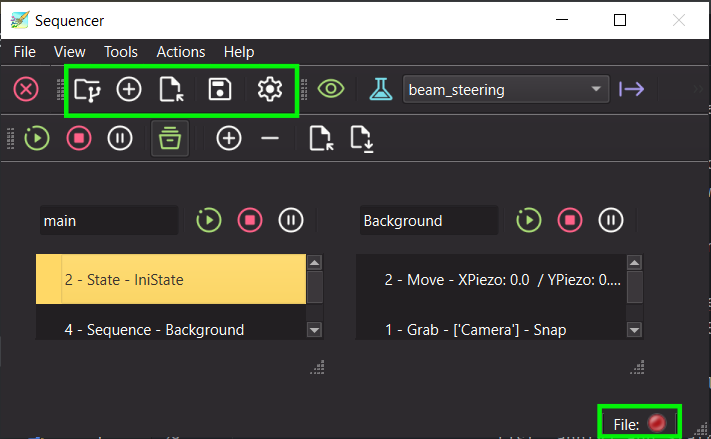
Fig. 5.6 The file toolbar of the H5Manager (left) and its indicators in the status bar (right).
5.4.1. Which file is used?
The H5Manager uses an H5Saver to write in the h5 file. When an application needs the file (to save or log data) and no file is open yet:
if a file was already used by this application and it still exists, it is reopened, in append mode
otherwise, a new file is automatically created following the standard naming convention:
<base path>/<year>/<yyyymmdd>/Dataset_<yyyymmdd>_<nnn>.h5
where
<base path>is the Base path setting of the H5Saver (by default thedata_saving / h5file / save_pathentry of the configuration), the year and day folders are created if needed, and<nnn>is incremented so that an existing file is never overwritten
You can choose another file at any time using the file actions described below: new data will then be written to the file you selected.
Note
A h5 file can only be written by one application at a time. If the file to be reopened is locked (for instance because it is open in another application), a dialog lets you choose to:
Retry, once the file has been closed elsewhere
create a New File (Auto) following the naming convention
Browse… for another existing file to append to
Cancel: the file is left closed
If the file cannot be reopened for another reason, a new file is created automatically.
5.4.2. File actions
The actions are available in the file toolbar of the application (Fig. 5.6) and in its File menu:
Action |
Description |
|---|---|
Show file content |
opens the current file in the Data Browsing: the H5Browser module to explore its content |
New file |
closes the current file and creates a new one, following the naming convention above. Subsequent data will be saved in this new file |
Open file to append… |
selects an existing h5 file: subsequent data will be appended to it |
Save copy as… |
saves a copy of the current file under another name |
Show h5 settings |
shows/hides the settings of the H5Saver (base path, base name, backend, compression…), see H5Saver |
Open Current File / Close Current File |
reopens/closes the current file, for instance to release the file lock. These actions are hidden by default |
Each application can hide some of these actions: for instance the DAQ_Scan doesn’t display the Show h5 settings action as its saving settings are always visible in its settings tree.
5.4.3. Status bar
Applications using it display in their status bar (Fig. 5.6):
a File LED: green when the h5 file is open and accessible, red otherwise
a SWMR label, when the file uses the Single Writer Multiple Reader mode of the h5py backend:
SWMR when this mode is active
SWMR file when the file was created with SWMR support but this mode is not currently active
hidden when the file has no SWMR association
5.4.4. Using the H5Manager in your application
Every CustomApp (see CustomApp and CustomExt) owns a H5Manager, available through its h5_manager property. A few
class attributes and arguments control how it is displayed:
the
h5_actions_notargument ofCustomApp.__init__: an iterable ofFileAction(frompymodaq_gui.managers.h5manager) not to be displayed. Default is(FileAction.CLOSE_FILE, FileAction.OPEN_FILE)the
show_h5file_statusbar_widgetsclass attribute: set it toTrueto display the File LED and SWMR label in the status bar (done inpopulate_status_bar)
The file toolbar (h5_manager.toolbar) is not added to the main window automatically. Add it, for instance in your
setup_menus_and_toolbars method, as done in the Sequencer:
from pymodaq_gui.utils.enums import MenuToolbarNames

def setup_menus_and_toolbars(self, menubar=None):
    self.add_toolbar(MenuToolbarNames.FILE, MenuToolbarNames.FILE.capitalize(), self.mainwindow,
                     toolbar=self.h5_manager.toolbar, add_break=False)
The H5Saver itself is obtained from the manager:
h5_manager.h5saver: the H5Saver with an open file. Accessing this property reopens the current file or creates a new one if needed, as described in Which file is used?h5_manager.get_h5saver(create_new_file=False, mode='a'): same but with more control: no new file is created unlesscreate_new_fileisTrue, and the file can be opened read-only withmode='r'. Use it when you only need the H5Saver settings or don’t want to create a file at startup
The manager emits signals your application can connect to:
command_sig: emitted with aThreadCommandwhose command is the triggeredFileAction, for instance to reset your application state when a new file has been loadedfile_open_signal: emitted withTruewhen a file has been (re)opened,Falseif the user cancelledfile_loaded_signal: emitted with the path of a file selected using Open file to append…
Finally, h5_manager.close_file() flushes and closes the file. Call it when your application quits so the file is
released. See Low Level saving for the API of the saving classes.